Crawl errors have a sneaky way of undermining your site's ability to rank well in search - and the vast majority of site owners wouldn't even know they're there until rankings plummet. Understanding how to fix crawl errors in Google Search Console is essential for maintaining your site's search visibility. Luckily, Google Search Console is a free tool that offers a peek under the hood of how Google views your site, revealing every page it is unable to crawl or index properly. Crawl errors are the very definition of an easy fix, so here's an easy guide to understanding and fixing them if you're not super tech-y.
What Are Crawl Errors?
When Google launches its bots (named Googlebots) to crawl your site, they attempt to land on and read each page. Some landings happen, but some do not. That is a crawl error - in essence, a page or resource that Google was unable to access successfully.
There are two principal types:
- Site errors — problems that prevent Google from accessing your entire website (like DNS failures or server errors)
- URL errors — issues with specific pages, such as broken links or pages that no longer exist
How to Fix Crawl Errors: Access Coverage Report
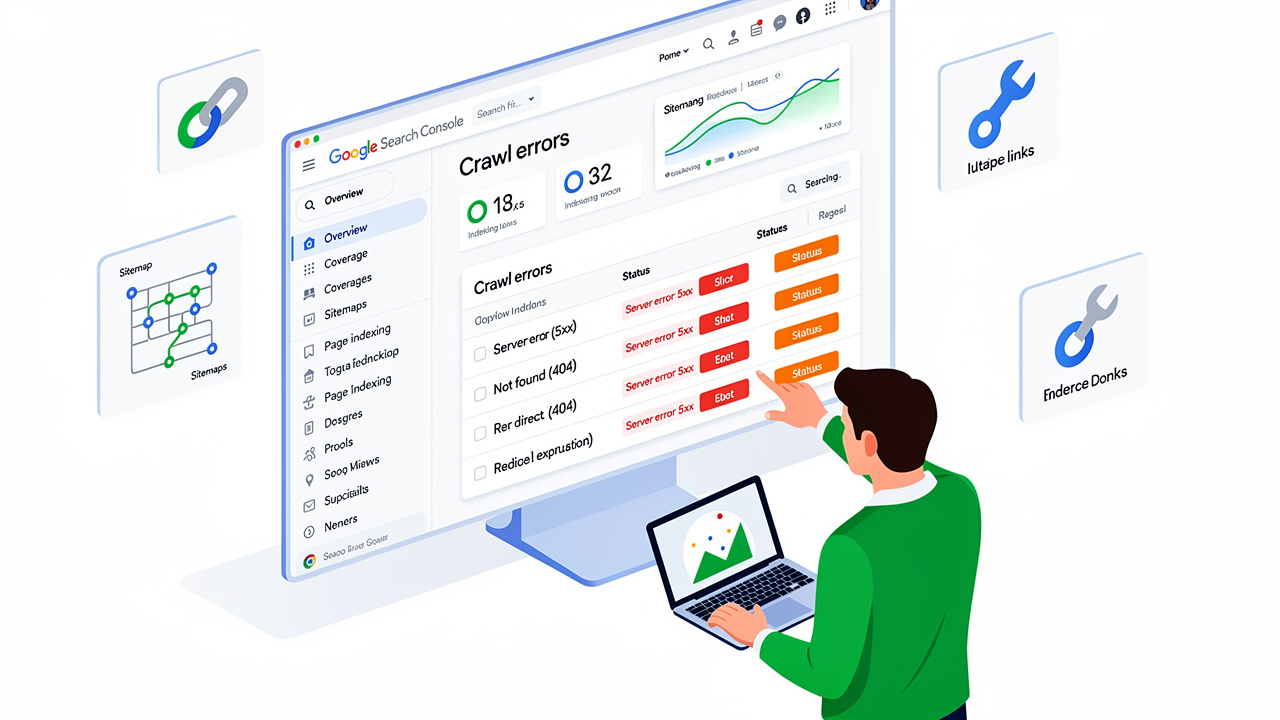
Step 4 - Track your crawl errors Log in to Google Search Console and choose your property. Click on Pages (formerly Coverage) on the left hand side. The report here lists all the URLs Google has attempted to crawl, grouped into Error, Valid with warnings, Valid and Excluded.
Pay attention to the Error tab first.
Step 2: Identify the Type of Error
There are numerous errors listed, but the most common ones you'll find are:
- 404 (Not Found) — The page doesn't exist anymore. This is the most frequent error, especially on older blogs.
- Server errors (5xx) — Your server failed to respond properly. Often a hosting issue.
- Redirect errors — A redirect chain is broken or leads to a dead end.
- Blocked by robots.txt — You've accidentally told Google not to crawl certain pages.
- Noindex tag detected — A page has a "noindex" tag that's preventing it from being indexed, sometimes unintentionally.
You can click on a specific error to identify specific URLs that are impacted. Google provides you with the first time the error was identified to help you identify what may have led to it.
How to Fix Crawl Errors: Solutions
Each error type has a specific fix:
- 404 errors: If the page was moved, set up a 301 redirect pointing to the new URL. If the page was deleted intentionally and has no replacement, that's fine — just make sure no other pages on your site are still linking to it.
- Server errors: Contact your hosting provider or check your server logs. These errors often spike during high traffic or after a plugin/theme update.
- Redirect errors: Audit your redirects using a tool like Screaming Frog or Ahrefs. Fix any chains or loops so each redirect goes directly to a final, working destination.
- Robots.txt blocks: Open your robots.txt file (yoursite.com/robots.txt) and check whether important pages are accidentally disallowed. Remove any rules that are blocking content you want indexed.
- Noindex issues: Review your CMS settings and individual page settings. WordPress users should check under Settings > Reading to make sure "Discourage search engines" isn't checked.
Step 4: Validate the Fix in Search Console
After you've fixed the issues, return to the Pages report and choose the error you want to fix. Then click on "Validate Fix" on the top right. Google will crawl those pages again and let you know if the error is fixed, which can take a couple of days.
Actionable Takeaways
- Check your Google Search Console Pages report at least once a month
- Prioritize fixing 404 errors and server errors first — they have the biggest impact
- Always set up 301 redirects when deleting or moving pages
- Don't block important pages in your robots.txt file accidentally
- Use the "Validate Fix" button after every correction so Google re-checks your work
- Keep your site's internal links updated to avoid pointing to dead pages
Crawl errors are not a disaster, but they do warrant some regular attention. Most of them are quick and easy to fix - with no technical experience needed - only some time and following the process.